Note: This post was automatically migrated from Markdown to Typst using AI. Read more about the migration process here. Contact me if something in this post is off and bothering you.
Using freelytics on Ghost
To start collecting some analytics data about your wordpress website with freelytics, simply follow these steps:
Head over to https://freelytics.net/generate-tracking-script and copy the code that is presented to you, either by clicking on the Button “Copy to clipboard” or highlighting the code and pressing CTRL+C.
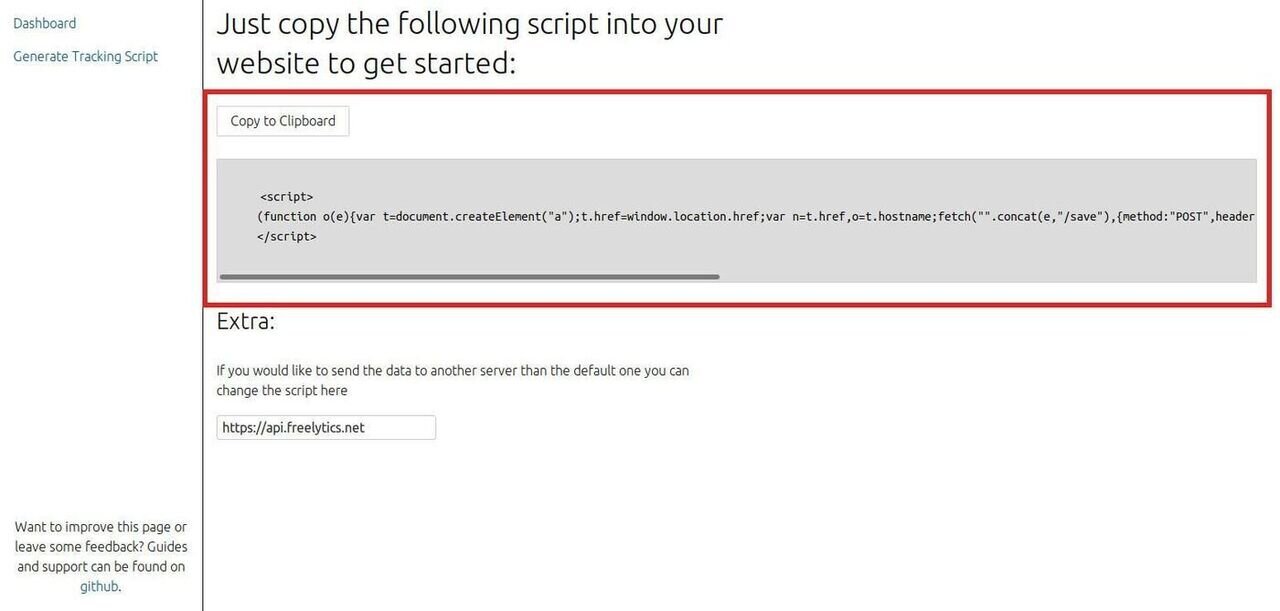
Tracking script from freelytics
Now just go the the code injection settings page of your Ghost installation and paste the code into the Site Header box.
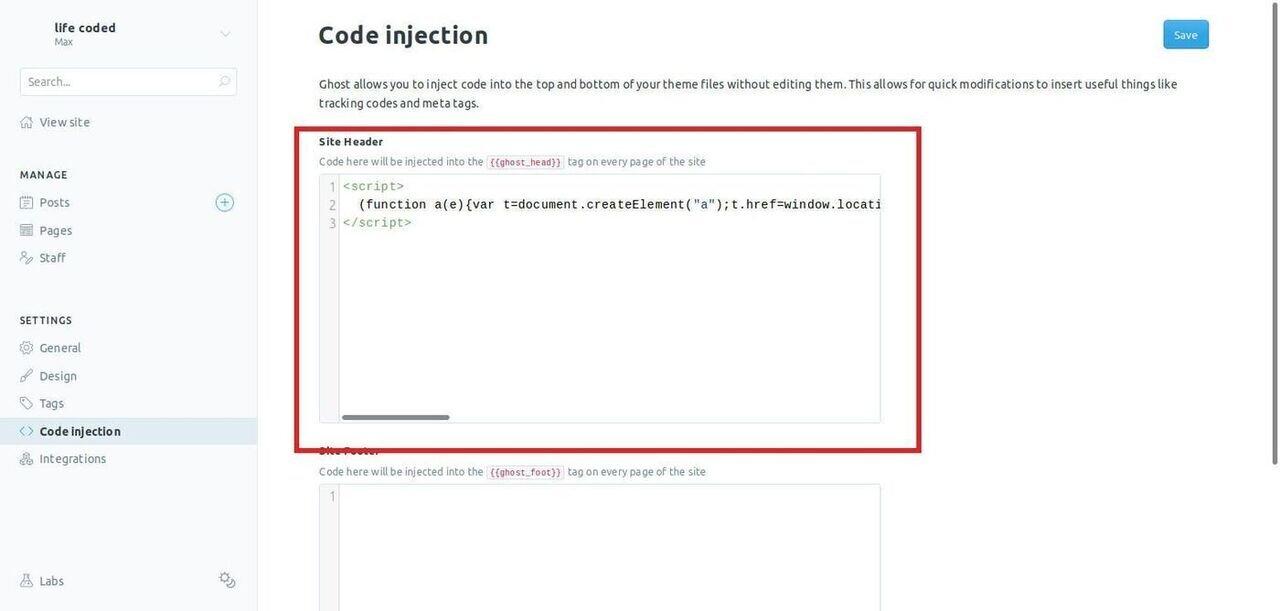
Tracking script inserted with ghosts code injection
Thats already it. Verify that everything is working by first visiting your website. Then visit https://freelytics.net, enter the URL of your site and press Get Data. You should now see that you have at least one visit on the page you just opened on your site. All you have to do now is to come back from time to time to see how your website traffic is growing.